The Problem
In my current job I am working on a very old codebase where the development has to be done on a dedicated dev server. For me that means using Samba on a MacBook. And from what I've read in various places, the Samba implementation on MacOS isn't always the best. For me, it is terribly slow and I have run into a couple of major issues that make development more difficult. The first issue is that I cannot use VS Code's built-in version control tools. I have tried changing various settings but it still doesn't work right. And the bigger issue is that because of the large number of files and the slowness of the connection, I cannot use the global find or easily pull up a file by name.A Solution?
Microsoft has a solution for this. It's called VS Code Remote Development. I have not tried it but it sounds promising. The problem is that at my job, it could take weeks (months?) to convince the powers-that-be that it's needed and secure. It's just one of those times where I can write my own solution faster than waiting on management to debate the issue. So here's what I came up with.My Solution
Based on this gist I found, I wrote my own code to keep my local codebase in sync with the dev server.The first part was to create a bash script called devcodemon to watch for changes in my local code directory using fswatch. Then whenever a file changes, it passes that to a Node script to process it. (By the way, I should point out that both of these scripts are in my PATH.)
devcodemon
#!/bin/bash
is_mounted=$(mount | grep rsync-test | wc -l)
if [ $is_mounted -eq 0 ]
then
    echo "Dev server not mounted"
    exit 1
else
    dir2watch="$HOME/rsync-test"
    echo "Monitoring $dir2watch"
    fswatch $dir2watch | (while read line; do sync-file.js "$line"; done)
fi
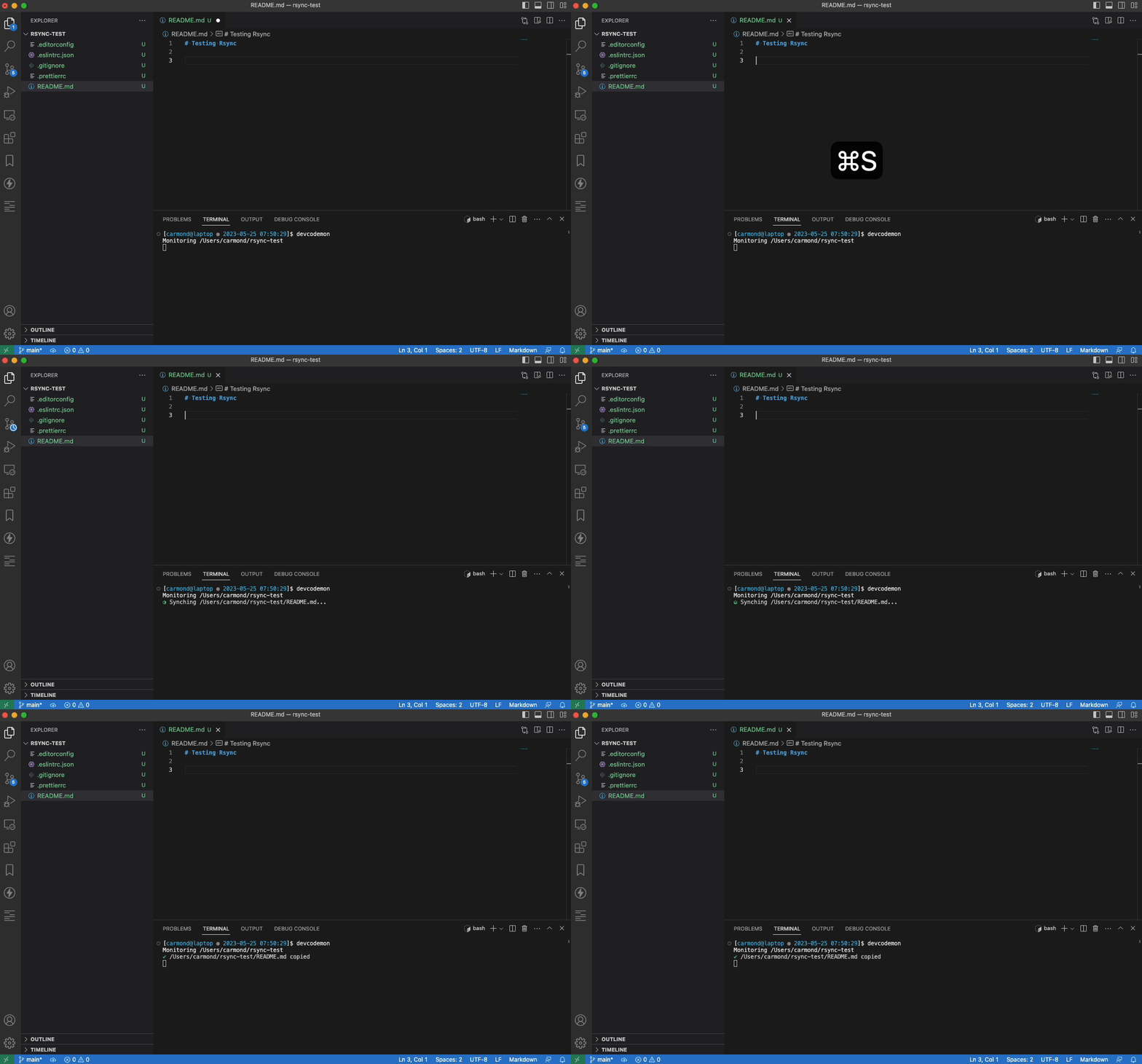
The second script, sync-file.js checks to see if the file was updated or deleted. If it was the former, then it copies the file over to the dev server. If it's the latter, it removes the file from the dev server. The ora pacakge gives the CLI a nice UI: a spinner while the file is processing and a green check on success or a red X on failure. A Node.js tip here: in order to use this package, you need to set
type to module in your package.json file. For more information on CommonJS modules vs ES modules, see this blog post.
sync-file.js
#!/usr/bin/env node
import { copyFileSync, existsSync, unlinkSync } from 'fs';
import ora from 'ora';

const basePath = `${process.env.HOME}/code/io-application-code`;
const destPath = `${process.env.HOME}/mounts/io-dev1`;

const ignorePatterns = [
    /^\/\.git/,
];

const src = process.argv[2];
const dst = src.replace(basePath, destPath);

(async () => {
    ignorePatterns.forEach(pattern => {
        const relativePath = src.replace(basePath, '');
        if (relativePath.match(pattern)) {
            process.exit();
        }
    });

    const spinner = ora({
        text: `Synching ${src}...`,
        color: 'green',
        spinner: 'circleHalves',
        interval: 200,
    }).start();

    const fileExists = await existsSync(src);
    const relativeSource = src.replace(basePath, '');
    const relativeDest = dst.replace(basePath, '');
    if (fileExists) {
        try {
            await copyFileSync(src, dst);
            spinner.succeed(`${relativeSource} copied ${new Date()}`);
        } catch (e) {
            spinner.fail(`${src} failed to copy`);
            console.log(e)
        }
    } else {
        try {
            await unlinkSync(dst);
            spinner.succeed(`${relativeDest} removed`);
        } catch (e) {
            spinner.fail(`Failed to remove ${relativeDest}`);
            console.log(e)
        }
    }
})();Saving a file
Deleting a file


